Table of Contents
- Logging In
- Change Your Password
- Signing Up for a Scheduled Event
- Playlist / Removal
- View Pairings / Groups
- ShotCaller's Dashboard
- RealTime Scorecard
- Alert Message Blog
- Scorecard History
- Match Play
- Post Scores
- Leaderboard
- Joining a Texas Golf League
- Golfer's Contact Info
- ShotCaller's Pro Shop
- Logging Out
- Marking Scores
- Score Verification & Live Card Review
- Stats Viewer
- Imported Scorecards
- FAQ / Troubleshooting
GSKV3 Golf Management
Player's Manual


1. Logging In
Before You Log In
Please read the instructions before logging in.
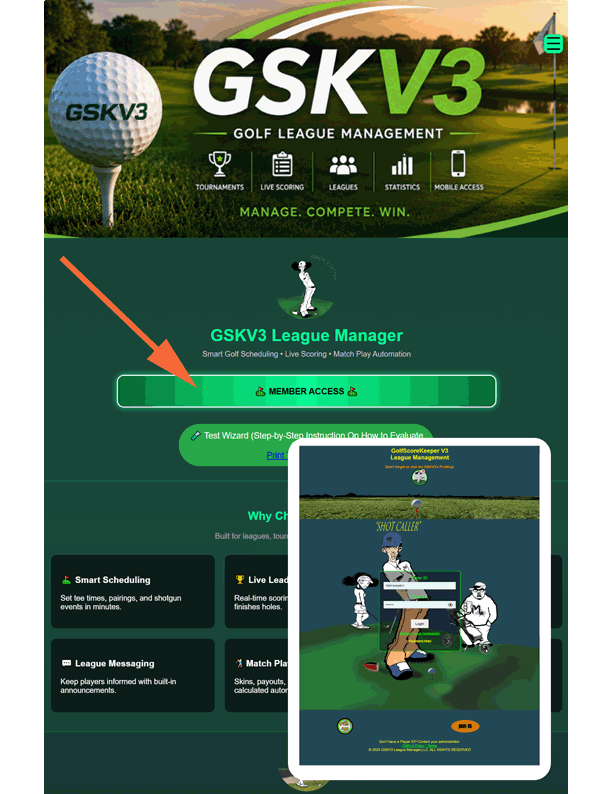
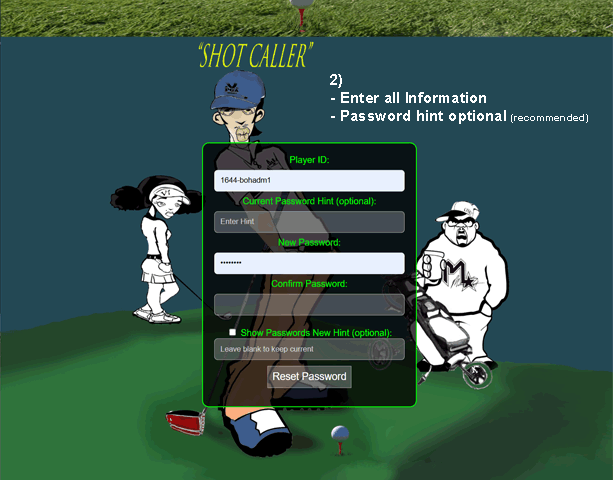
The GSKV3 Home Page is the access point for league members. Select Member's Access, then enter the credentials provided by your league administrator.
After successful login, the Shot Caller's Dash Panel will appear.
1.1 How to Change Your Password Securely
Click the Forgot Password link (shown in the login form figure).
Fill in the following required fields as shown in the figure below:
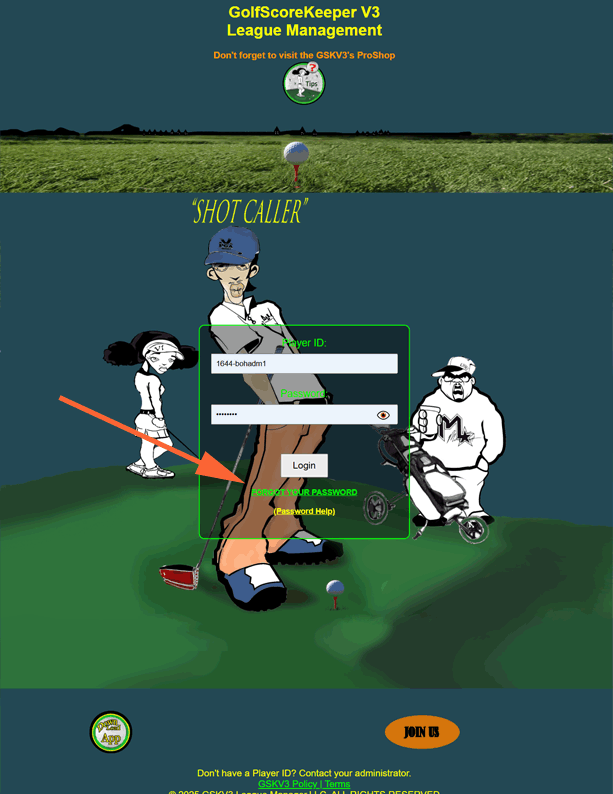
- Player ID – This is your unique ID (provided by your league or visible on your profile).
- Player Name – Your full name as registered (you must include the comma between last and first name).
- Current Password Hint – If you have not made a change to your password hint and this is your first time logging in, the password hint is: "lpgc".
- Enter and confirm your new password.
- (Optional) Set a new password hint for future resets. Leave blank to keep the password hint set at: lpgc.
Click "Change Password" to submit the form.
🔒
Important:
- The password hint must match the one
set by the admin.
- If you enter a new hint, it will
replace the old one.
- Passwords are case-sensitive.
📸
Example:
Player ID: 1234-lpgc
Player Name: Smith, John
Current Hint: "Get from
Administrator if it's your first time logging in and you have not made a change
to hint".
New Password: [••••••••]
Confirm Password: [••••••••]
New Hint (Optional): "Favorite
course"
If unsure of your current hint, contact us for additional help via text message at our support number 8329382347. (Include Player ID. Your Golf Organization and phone number on file must match.)
2. Signing Up For Scheduled
Event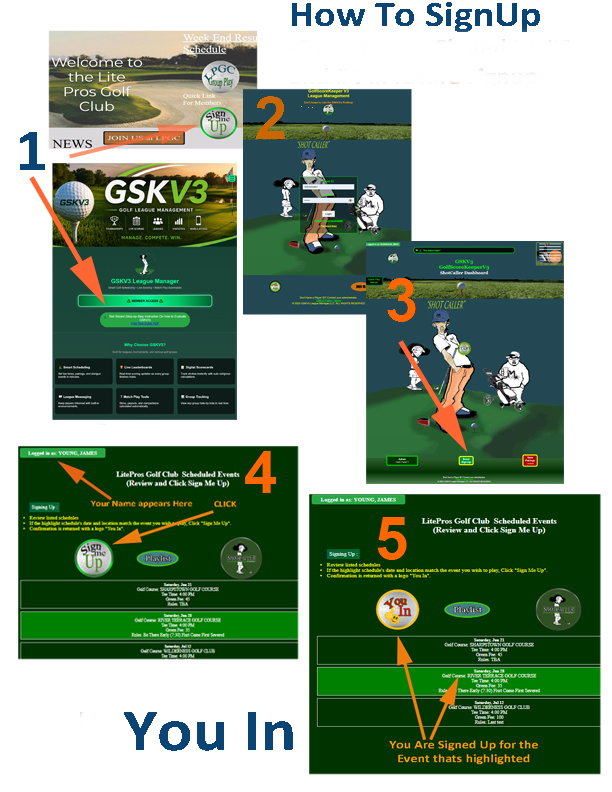
On the ShotCaller’s page, click the “Sign Up to Play” button (see arrow) and follow the step-by-step instructions in the chart below to add yourself to the event’s playlist.
Your organization may provide a direct link or an icon located on the website's home page to access GSKV3. If not, go to GSKV3.COM and click “Login.”
Once you're signed in, you can view all scheduled events, and players who have signed up (click the “Playlist button”).
On the Playlist page, you can remove yourself from the event's playlist at any time by clicking “Remove” next to your name.
2.1 Play List / Removal from list
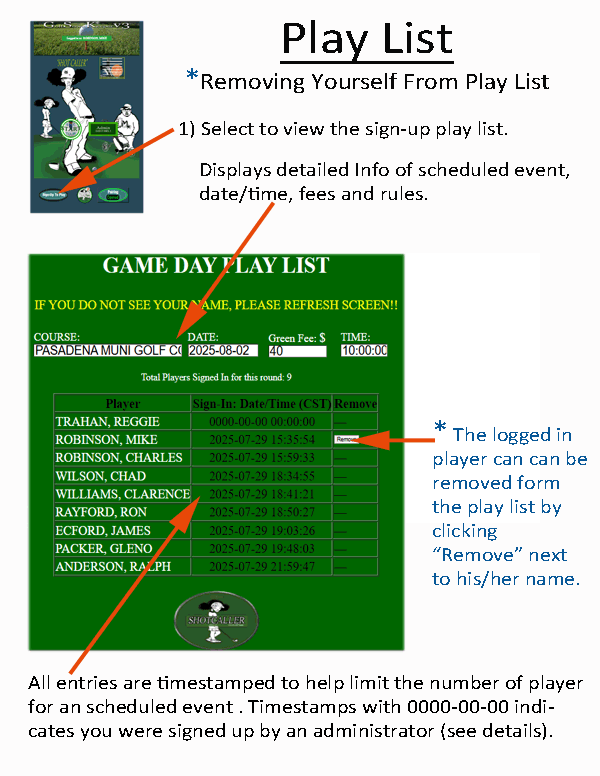
This page shows all players who have signed up for today’s round, along with the exact time they registered. You may remove yourself from the list at any time before play begins. Once sign-up closes, the list updates automatically.
Each sign-up entry includes a timestamp to help manage group limits based on the number of slots provided by the golf club. A timestamp of 0000-00-00 indicates the player was added manually by an administrator.
Many golf organizations also use these timestamps to maintain a standby list, allowing the next player in line to fill a spot if someone cancels. GOTO Playlist
2.2 View Pairings/Groups
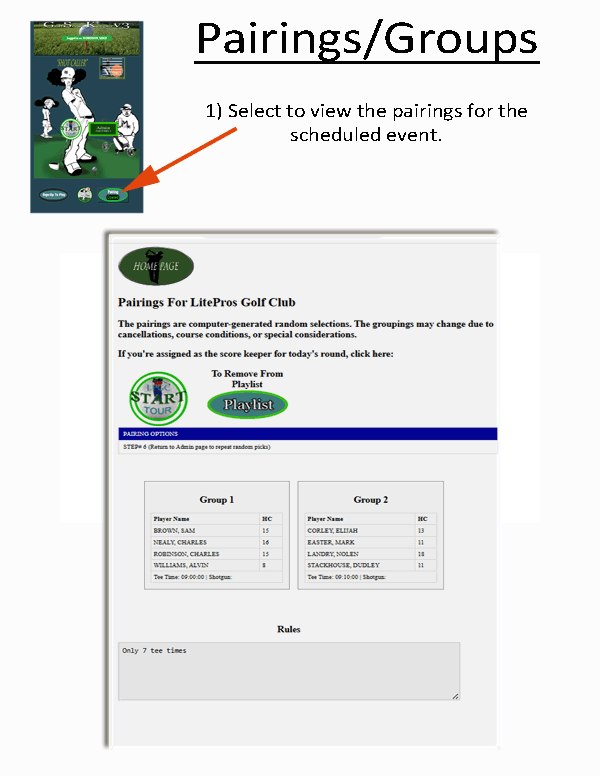
Shows your group, tee time, starting hole (shotgun starts), and handicap for scheduled round. Check the Pairings icon before play to know the rules of play, when, and where you start. When the "Pairings" icon is disabled, admin will enable once groups/pairings is completed.
Your company business logo can be displayed as your “START TOUR” button to begin scorekeeping for your groups — Only player assigned to a group may record scores for that group.
On the admin playlist page,
there’s an administrator icon labeled “Download Groups PDF” (shown below),
which generates a printable PDF of the scheduled pairings. This file is
typically emailed to the golf club pro.
"Print Icon" ⇒
3. ShotCaller's Dashboard

Once logged in, you'll see your ShotCaller Menu Bar where you can click to select pre and post data, upcoming events, playlist, group assignments, and scoring history. Your login ID should be displayed at the top of the ShotCaller's Dashboard.
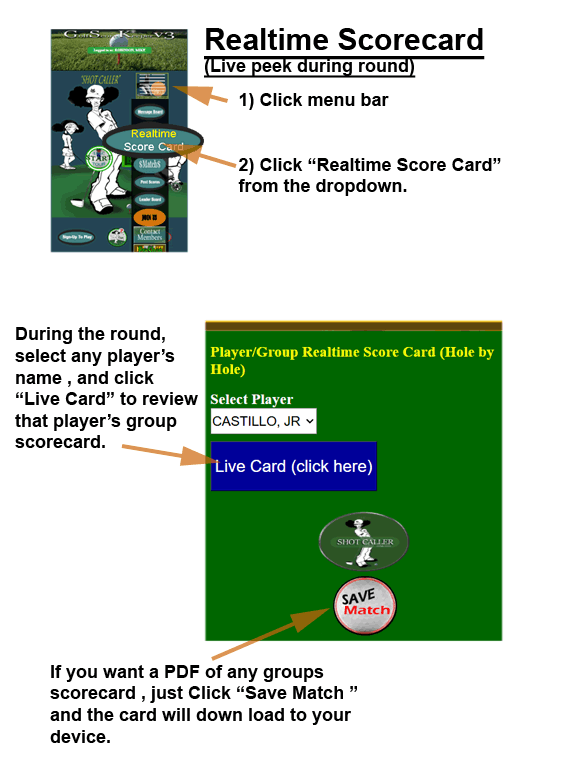
4.1 RealTime Scorecard Pre-views
The ShotCaller's Dash Panel provides quick access to key features of the Golf Management App.
 – View
real-time scores during play. After completing your round, review and
print full scorecard.
– View
real-time scores during play. After completing your round, review and
print full scorecard.
5.1 Alert Message Blog
The ShotCaller's Dash Panel provides quick access to key features of the Golf Management App.
- Opens the league blog and announcements.
GSKV3 includes a built-in alarm messaging system that alerts players to important updates at the start of play and throughout the round. Any player logged into the GSKV3 app can set an alert. Use this feature to notify others of unexpected course conditions, weather changes, wildlife sightings, or other important information.
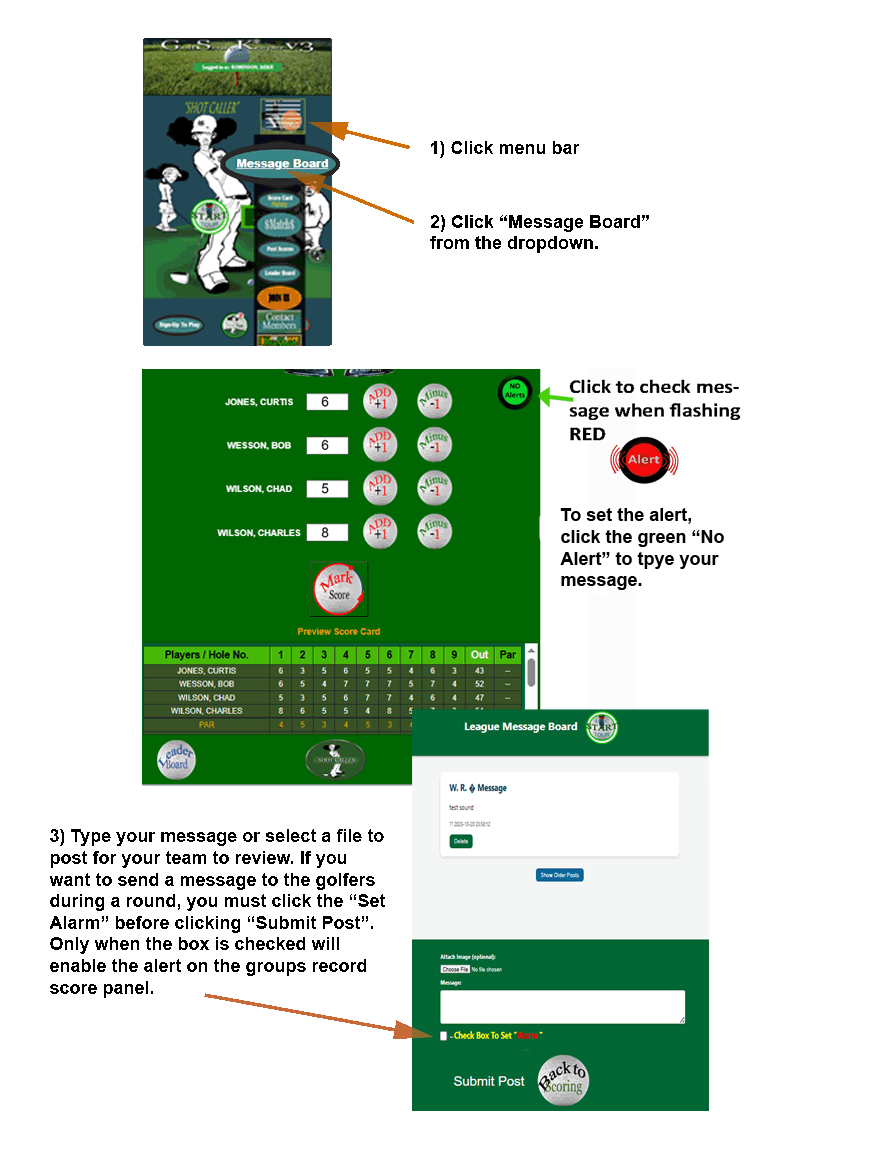
There are two ways to set an alert:
- From the ShotCaller’s Dash Panel — open the menu bar and select Message Board.
- From the Player’s Recording Page.
Alarm ON (status = 1): The alarm icon changes to the animated red “Alert On” image and begins flashing. An audible alert plays for up to three minutes or until the alert is cleared.
Alarm OFF (status = 0): The icon switches back to the green “Alarm Off” image, the flashing stops, and any active alert sound is silenced.
The first click on the page unlocks audio playback (required by most browsers) to ensure the alert sound can play when needed. Players can acknowledge or clear an alert by clicking the alarm icon and reviewing the posted message.
6.1 History (All ScoreCards)
The ShotCaller's Dash Panel provides quick access to key features of the Golf Management App. Each button performs a specific task:
 –
–
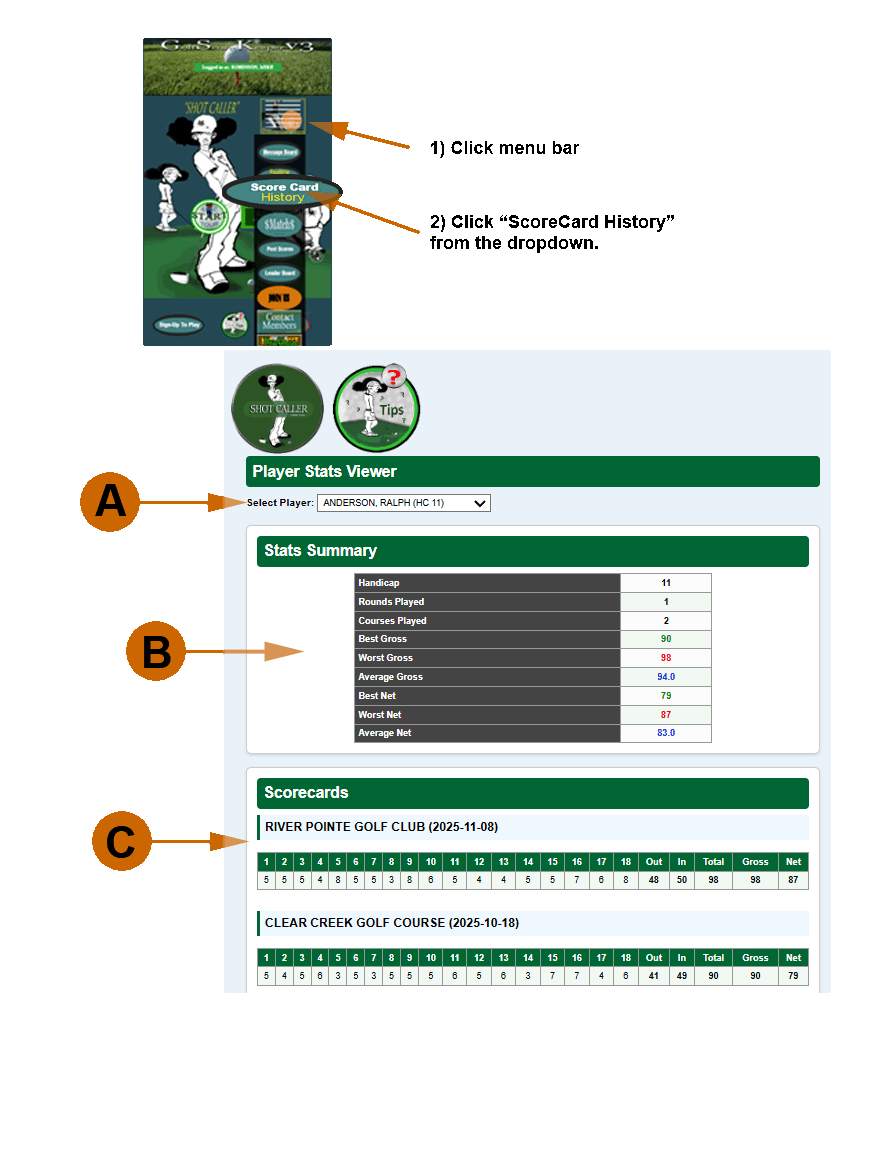
Review any player’s golf statistics, handicap, and complete score history. Use the steps below to navigate the Stats Viewer effectively.
A. Select a Player
- Use the dropdown list at the top of the page.
- The list automatically reloads the page when you choose a name.
- Each player displays with their current Handicap (HC) for quick reference.
B. Stats Summary
- Shows Handicap, total rounds played, and number of courses played.
- Displays best, worst, and average scores for both Gross and Net.
- Colors help you spot performance: Green = Best, Red = Worst, Blue = Average.
C. Scorecards
- Each recorded round is shown, newest first.
- Includes hole-by-hole strokes, Out, In, Total, Gross, and Net.
- Totals are highlighted for quick reading.
Note: You must be logged in under a valid client account to view player data.
7.1 Match Play
The ShotCaller's Dash Panel provides quick access to key features of the Golf Management App. Each button performs a specific task:
 –
Launch/After a 9 or 18
hole round, select one or four players and determine the cash winner
in match play. This calculator gives you two options: match with carryover or
match with no carryover.
–
Launch/After a 9 or 18
hole round, select one or four players and determine the cash winner
in match play. This calculator gives you two options: match with carryover or
match with no carryover.
8.1 Post Scores
The ShotCaller's Dash Panel provides quick access to key features of the Golf Management App.
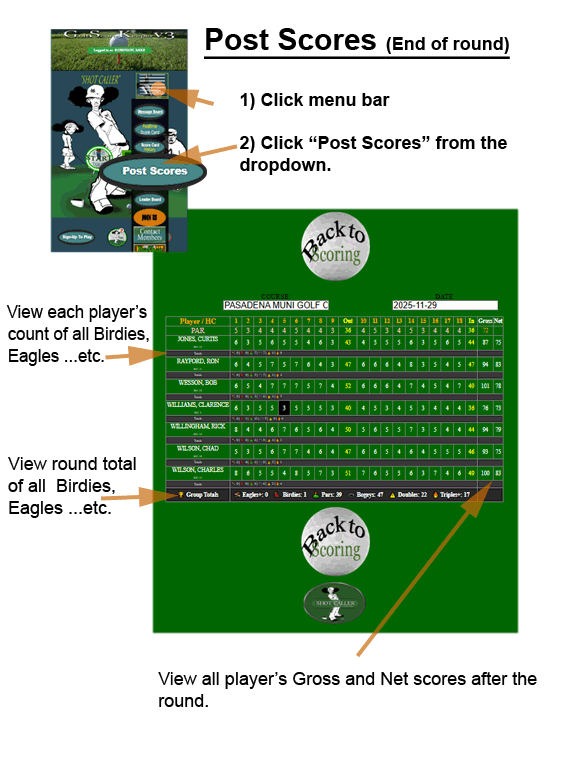
 -
After
the end of the round, and all groups have clicked "END
ROUND", all scores are posted for viewing.
-
After
the end of the round, and all groups have clicked "END
ROUND", all scores are posted for viewing.
- Shows CourseID and event_date for the latest schedule.
- Shows Par Values (hole1–hole18, plus Out, In, Total).
- Shows all Player names, Handicap (HC), Strokes for holes 1–18, Out, In, Gross, Net totals.
Score Table
- PAR row (pink/yellow)
- Player rows with strokes
- Background colors for scoring
performance:
- Eagle or better → red
- Birdie → black
- Par → normal
- Bogey → normal
- Double bogey → normal
- Triple+ → normal
Auto-Calculated Totals
Under each player:
- A “Totals” row with number of eagles, birdies, pars, bogeys, doubles, triples.
At the bottom:
- A Group Totals row summing all players’ achievements.
9.0 Leaderboard
The ShotCaller's Dash Panel provides quick access to key features of the Golf Management App. Each button performs a specific task:

 –
–
Scores update automatically as players enter strokes during play. The leaderboard ranks players by total strokes, holes completed, and the time they finished their first hole.
What You Will See
- Course, Date, and Start Time for the current event.
- Your organization’s start logo (or the default logo if not assigned).
- A ranked leaderboard showing: Player Name, Total Strokes, Holes Played, Time Completed First Hole (adjusted +2 hours), Group Number.
- Players who finish all 18 holes appear at the top.
Navigation
- Click the Back button to return to the previous page.
- Click the Home button to go to the main menu.
Access Requirements
This page can only be viewed by logged-in players or admins with a valid session. Unauthorized users will be denied access.
10.1 Joining a Texas Golf League
The ShotCaller's Dash Panel provides quick access to key features of the Golf Management App. Each button performs a specific task:
 –
–
This quick guide explains the two-part process required to join a league in GSKV3.
Part 1 - Prove You're Human (Join-Code Challenge)
Before you can access the application, you must complete a simple "Not-A-Robot" security step. This ensures only real people submit join requests.
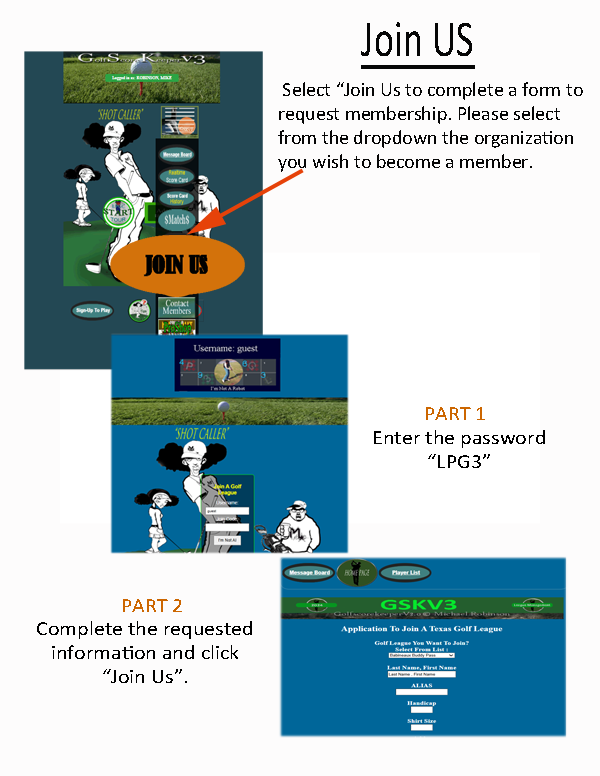
How It Works
On the first screen, you will be asked to:
- Enter the username: guest
- Enter a special 4-letter join code
The join code is created from the image displayed on the screen. Each character has a number next to it (1–4). You must type the letters in order of the numbers.
If the image shows: P (3) and H (1)
Then your code is: HP (Because 1 comes before 3).
Enter all four letters in the correct numerical order, then click: "I'm Not AI".
Once your code is accepted, you will be taken to the actual membership application.
PART 2 – League Membership Application
After passing the join-code screen, you'll arrive at the full membership form. This form collects the information required by all Texas-based Golf Leagues using GSKV3.
What You Will Need to Enter
- Select the golf league you want to join.
- Your full name (Last, First)
- Alias (optional)
- Your current golf handicap
- Shirt size, Mailing address, City / State / ZIP, Phone, Email
- Notes for league administrators
Important Membership Information
- Membership fee is usually $25 (one-time lifetime fee).
- Weekly schedules are posted online on your league’s website.
- If you're trying to play in next week’s event, fill out the form and text 832-818-8588 to receive your login credentials.
- Members must participate in at least 5 events per year to remain active.
- The league has a max score of +3 over par per hole to keep play moving.
- Major events include the Club Championship and the Champions Event.
Welcome aboard! We think you’re going to love your league experience.
⬆ Back to Top
11.1 Golfer's Contact Info.
The ShotCaller's Dash Panel allows you to look up contact information for any active GSKV3 golf member. You may also update your own profile using the “Update My Info” popup.
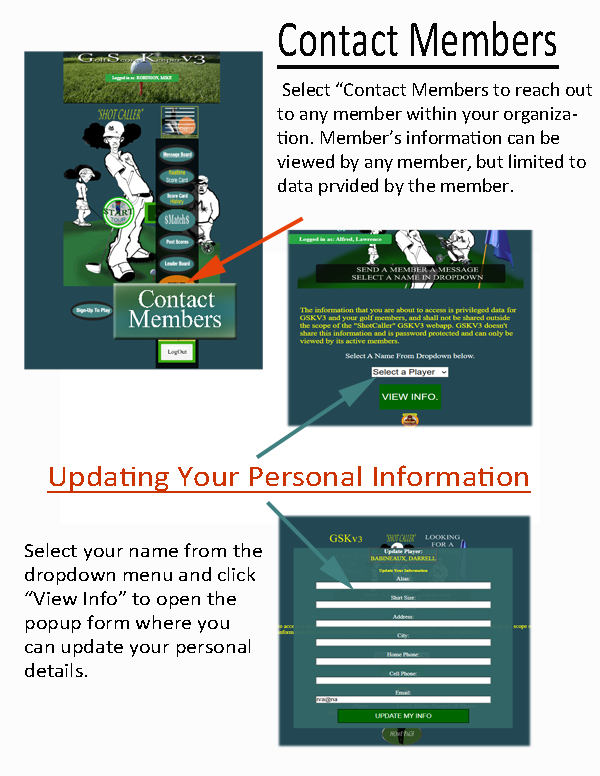
 –
– 🔍 Viewing Member Information
- Tap the dropdown list at the top of the page.
- Select the member you want to view.
- Press VIEW INFO to display their email and phone numbers.
- The contact table will appear directly below the form.
✏️ Updating Your Personal Info
- You can only update your own information.
- After selecting your name and viewing your info, an Update My Information button will appear.
- This opens a popup window where you can edit: Alias, Shirt size, Address/City, Email, Home/cell phone.
- Click Save/Update Info to store your changes.
🔐 Privacy Note
All member information is protected and available only to registered users of the GSKV3 ShotCaller WebApp. Do not share this information outside your golf group.
12.1 ShotCaller's Pro Shop
 – Support your organization whenever you buy
from GSKV3 PROSHOP. All merchandise is secured and handled through Amazon, with
shipments right to your door. After each purchase, send a screen shot to your
Admin and watch your organization's bonus points grow.
– Support your organization whenever you buy
from GSKV3 PROSHOP. All merchandise is secured and handled through Amazon, with
shipments right to your door. After each purchase, send a screen shot to your
Admin and watch your organization's bonus points grow.
Coming Soon! Visit Our Official Golf Pro Shop
We’re excited to announce the launch of our new Golf Pro Shop, powered through our Amazon-affiliated store AmazonLiving.shop.
Our Pro Shop gives members a convenient way to browse and purchase golf gear, accessories, and training essentials — all curated for golfers who want quality at a great price.
Why this matters
- Convenient shopping for trusted golf products
- Competitive Amazon pricing
- Fast delivery using your Amazon account
- Supports our league through affiliate earnings
- No added cost to you
Your support helps
Every purchase made through our Pro Shop link helps support our golf community and allows us to continue improving GSK services, tools, and features.
How to access the shop
Just click the “Golf Pro Shop” link on the homepage or menu to start browsing.
13.1 🔒 Logging Out – Why It Matters
The ShotCaller's Dash Panel provides quick access to key features of the Golf Management App. Each button performs a specific task:
 –
–
When you finish using the GSKV3 ShotCaller app, it is very important to log out properly. Logging out closes your session and helps protect your personal information, especially your contact details, schedule, and golf activity records.
Why You Should Always Log Out
- Protects your privacy – logging out ensures no one else can open the app and use your account.
- Prevents unauthorized access – especially important if you share a device or use a public phone/tablet.
- Keeps your data secure – your contact info, round history, and event data remain protected.
- Stops accidental changes – prevents others from editing your profile, updating scores, or posting alerts.
How to Log Out
- Look for the LOG OUT button on the main menu or navigation bar.
- Tap or click the button once.
- You will be safely returned to the login page.
14.1 Marking Scores
Who’s On The Tee Box? — Player Help
Purpose of This Screen
This screen is used by the Score Keeper to confirm which players are physically present at the tee box before play begins.
It ensures the scorecard is accurate and that only confirmed players are included for the current round.
Who Can Use This Page
- You must be logged in as a Player to use this page.
- If logged in as an Admin, you must switch to Player Mode.
- Admins cannot keep score or manage the tee box.
If you see a yellow Admin Mode banner, click “Switch to Player Mode” before continuing.
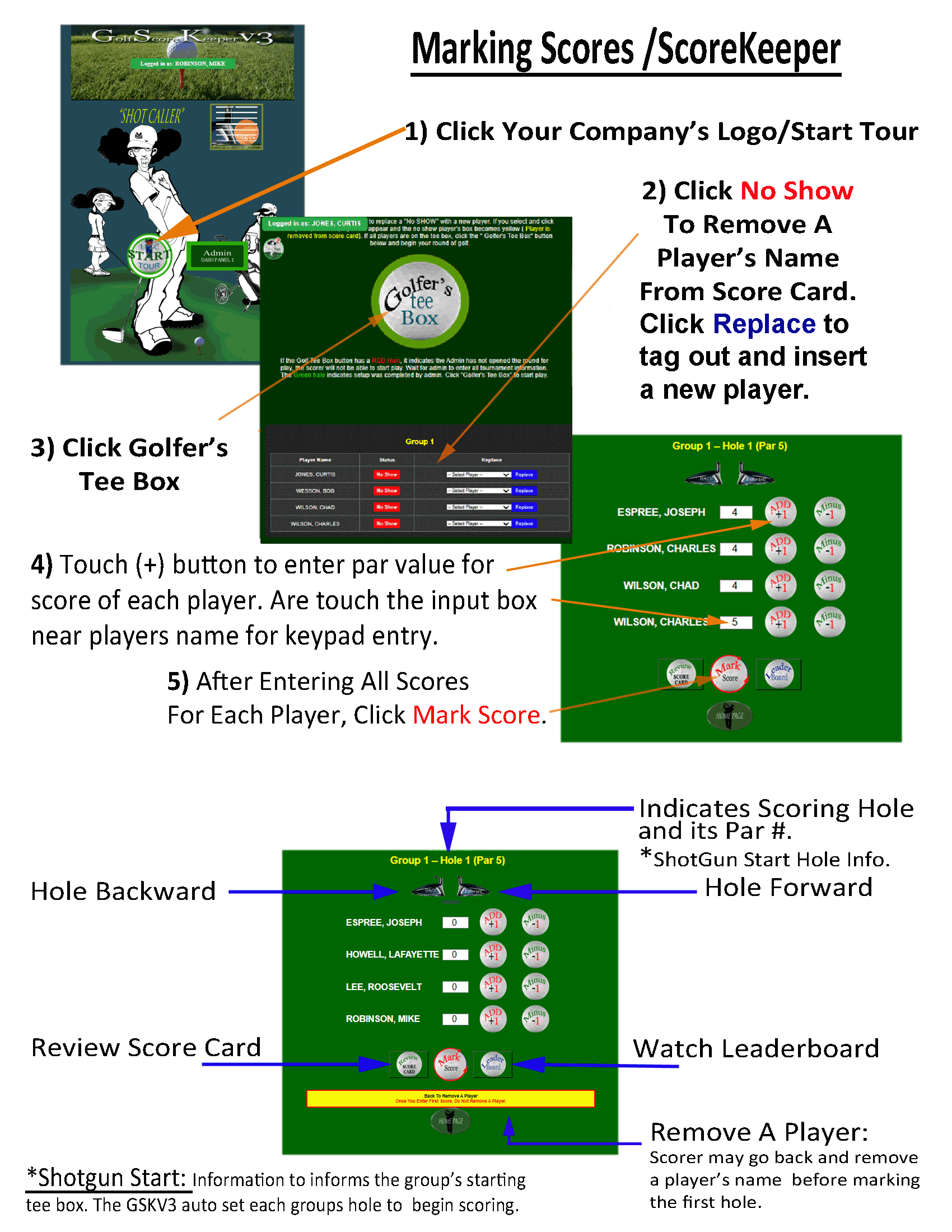
Golf Tee Box Button Status
- Green Halo — The round is OPEN by the Admin. Click to begin play.
- Red Halo — Setup is NOT complete. Wait for the Admin to open the round.
Group Assignment
- You will only see players assigned to your group.
- If you are not assigned to a group, contact your Admin.
No Show & Restore
- Click No Show if a player does not arrive at the tee box. No Show players are removed from the scorecard.
- Click Restore if a player arrives late and should be added back. A restored player is immediately returned to the scorecard.
Replacing a Player
If a player does not arrive and needs to be replaced:
- Use the Replace column for the No Show player.
- Select a replacement player from the dropdown list.
- Click Replace and confirm the action.
Score Entry & Hole Navigation – Player Help
- Current Hole: The heading shows your group number, hole number, and par for the selected hole.
- Change Hole: Use the Previous and Next hole buttons to move between holes 1–18.
- Enter Scores: Enter strokes for each player or use the + and − buttons to adjust scores.
- Save Scores: Click Mark Score to save scores for the current hole before moving on.
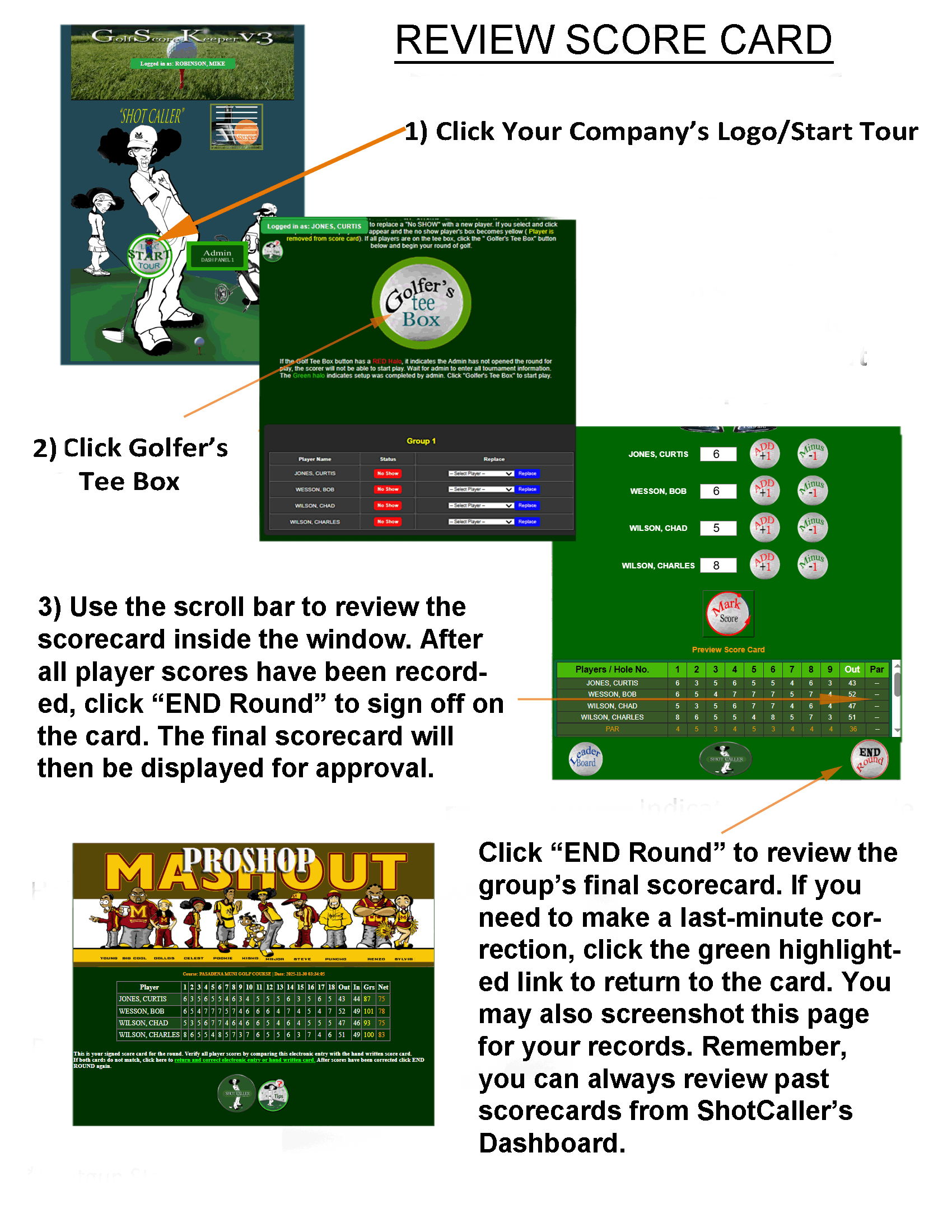
- Preview Scorecard: The table below shows all saved scores. Black indicates a birdie, and Red indicates an eagle or better.
- End Round: The End Round button appears only after all required hole scores are entered.
Tip: Always save scores before changing holes to prevent data loss.
15. Score Verification & Live Card Review
During and after a round, any player in the group—or an administrator—may review scores for accuracy. The Live Card Window allows you to view the scorecard in real time as strokes are entered for each hole. This feature streamlines score verification, minimizes errors, and greatly reduces the time needed to review and confirm the final scorecard at the end of the round. Record Scores.
16. Stats Viewer
 –
– This page shows your personal golf statistics, including scores, handicap, winnings, and performance by course. Only your own data is shown.
🏆 Best Round
- Displays your best net score on record.
- If two rounds have the same net score, the lower gross score wins.
- Includes the course name and date played.
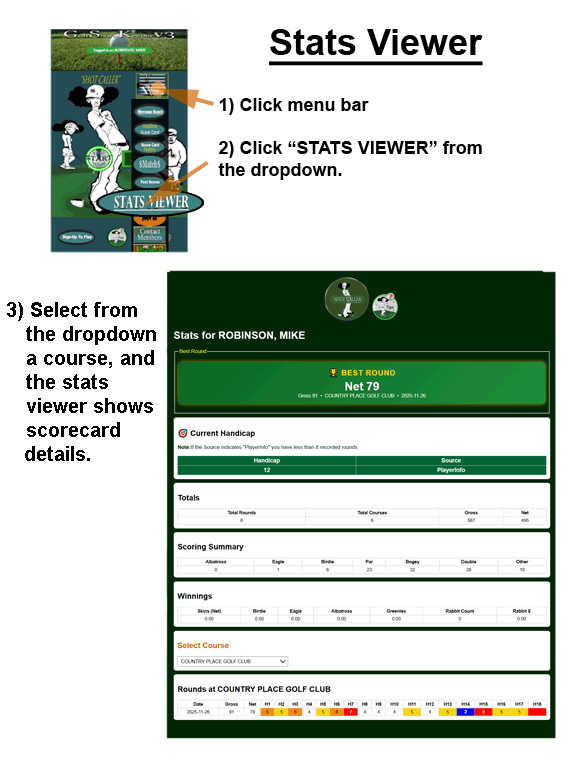
🎯 Current Handicap
- Your handicap is calculated automatically.
- If you have fewer than 8 recorded rounds, the handicap comes from your player profile.
- With 8 or more rounds, it is calculated using your last 8 rounds.
⛳ Scoring Summary
Counts Albatross (−3), Eagle (−2), Birdie (−1), Par (0), Bogey (+1), Double Bogey (+2).
🏌️ View Rounds by Course
Select a course from the dropdown list to filter. Hole Color Guide:
🟣 Albatross 🔵 Eagle 🟢 Birdie ⚪ Par 🟡 Bogey 🟠 Double 🔴 Other
Imported Scorecards
This page allows you to enter and submit your official golf scorecards for any non-tournament round played outside your organization. All scorecards submitted here are considered official once approved by an administrator, so please review your entries carefully before submitting.
Your Player Name is automatically filled in from your account and cannot be changed.
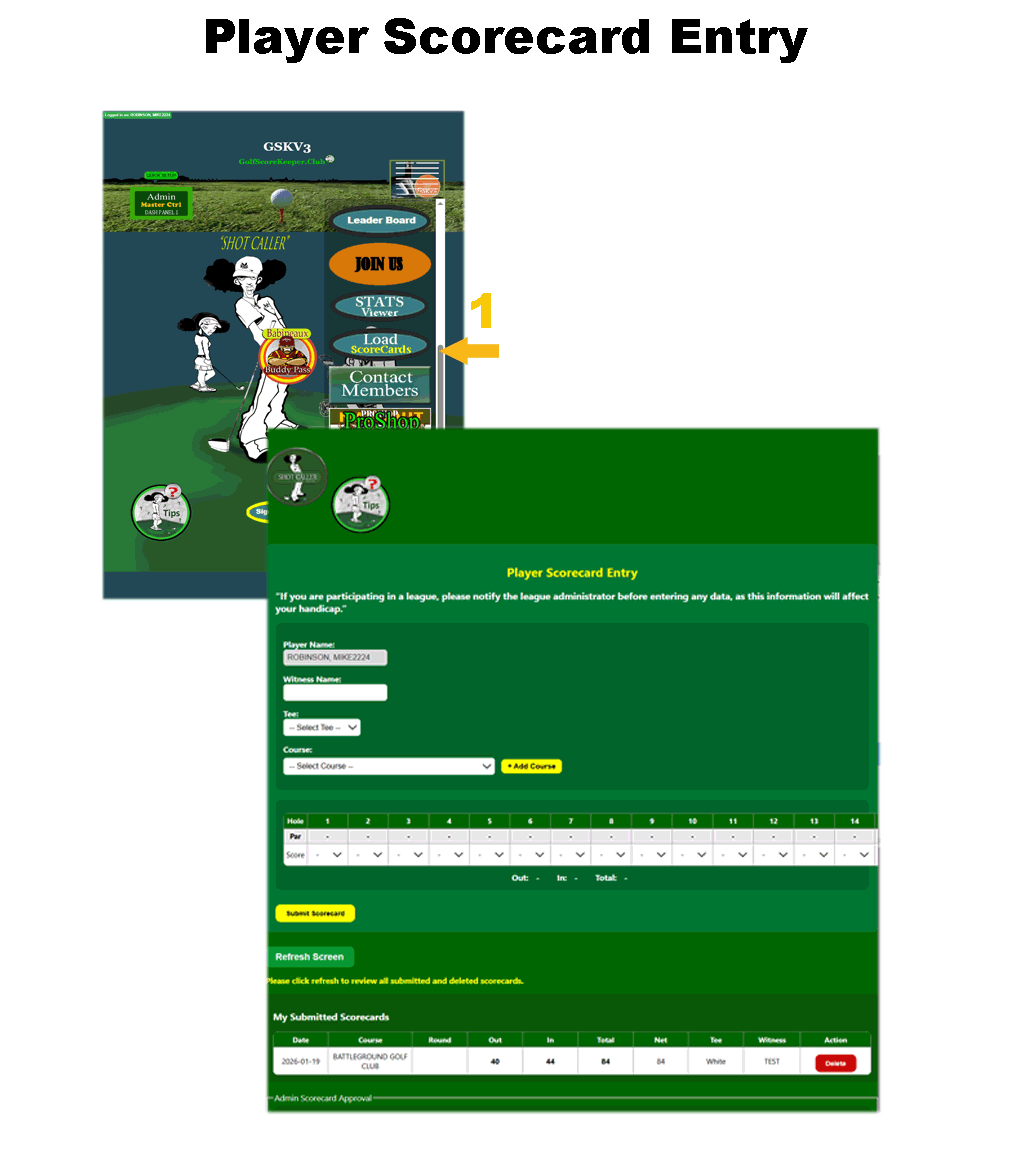
The Witness Name field is required. Enter the full name of the person who verified your scorecard. A scorecard cannot be submitted without a witness.
Use the Tee dropdown to select the tee box you played from. Select the Golf Course from the dropdown list. Once selected, par values for each hole display automatically.
17.1 FAQ / Troubleshooting
Q: I
forgot my password.
A: Use the
password reset link or contact your admin to reset it (text
832.938.2347).
Q: I
can't see my group.
A: Make sure
you're signed up for the current event and assigned to a group.